





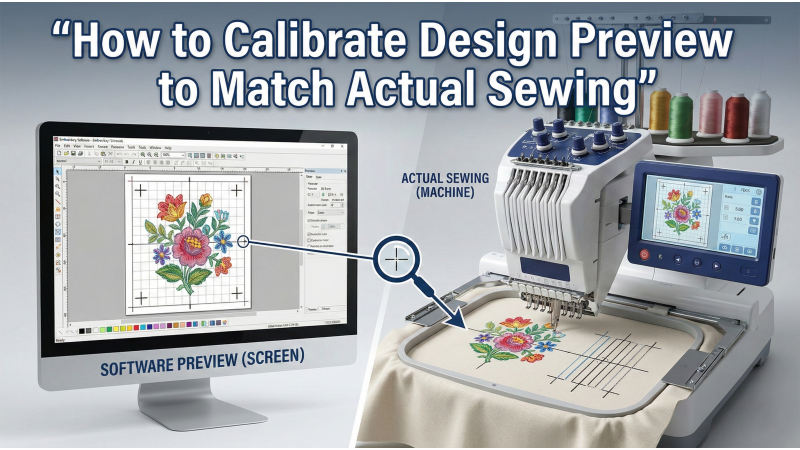
How to Calibrate Your Design Preview to Match Actual Sewing
Many embroiderers struggle with a frustrating issue: the design preview shown on the embroidery machine screen or inside the software looks perfect—but the stitched result comes out shifted, distorted, or incorrectly dense. These deviations happen because embroidery machines, fabrics, stabilizers, and digitizing programs all interpret stitching slightly differently. Proper calibration ensures that what you see during preview matches what your machine actually sews.
Before you start calibrating, it’s also useful to understand how projection-based tools affect accuracy. For example, learning how to properly calibrate an ultra-short-throw projector or how to align a pattern projector for sewing can greatly improve your design alignment workflow.
In this guide, you’ll learn essential steps to sync your preview with your stitched output so you can achieve professional-level accuracy every time.
1. Select the Correct Hoop Size in Both Software and Machine
A very common cause of mismatched results is selecting different hoop sizes between your digitizing software and the embroidery machine. Even a few millimeters of mismatch can cause the design to shift.
Always choose the exact hoop model, orientation, and embroidery field in both places. If your software allows custom or adjustable fields, make sure they match the machine’s fixed sewing field perfectly.
2. Verify Machine Offset & Needle Center Calibration
Over time, your machine’s X/Y calibration may drift. This results in the needle sewing slightly away from the displayed center. To fix this, run your machine’s built-in alignment test—most display a crosshair or square—and adjust the offsets until the needle returns precisely to the center.
3. Compare Software Density vs. Machine Interpretation
Not all machines interpret density equally. A stitch value that looks clean in the software may sew thicker or thinner depending on your machine’s firmware. Run small test swatches to understand how your machine behaves at various densities. This helps your preview match the real result more accurately.
4. Turn On Realistic Stitch Simulation
Most digitizing programs offer two preview modes: outline and realistic simulation. The outline mode shows only shapes, not real stitch interaction. Realistic simulation displays thread direction, stitch flow, tension effects, and potential distortion. Always use realistic simulation when fine-tuning designs.

5. Account for Fabric Pull and Push
Fabric always moves under stitching pressure. Lightweight materials stretch, while heavy fabrics resist. This creates “pull” (inward shrinkage) and “push” (outward expansion). Adjust pull compensation in your digitizing software and use proper underlay patterns to keep shapes accurate. Without these corrections, circles may sew like ovals and straight lines may warp.
6. Check Trim, Tie-In, and Tie-Off Settings
Some machines add automatic trims and tie-in stitches even if your design file doesn’t contain them. These additions can slightly change the sequence and affect alignment. Match the tie-in/trimming logic in your software and machine settings so both systems follow the same stitch order.
7. Export Using Your Machine’s Best File Format
Different file formats store different types of information. For example, DST files lack certain color and command data, which may cause stitching differences. Use your machine’s native or most compatible file format whenever possible, and avoid converting files multiple times.
8. Run a Calibration Test Design
A test file containing circles, squares, and alignment marks is the most reliable way to see if your preview matches machine output. If the stitched pattern shows distortions or offset issues, adjust machine calibration, fabric compensation, or hoop settings accordingly.
Watching demonstrations can also help you understand how calibration behaves in real-life conditions. Videos such as embroidery calibration tutorials or machine alignment walkthroughs can provide visual clarity during the process.
Final Summary
When your hoop settings, calibration offsets, stitch densities, realistic simulations, fabric compensation, and export formats are properly aligned, the gap between digital preview and physical stitching becomes extremely small. Proper calibration ensures consistent placement, predictable results, and professional-quality embroidery on every project.
Leave a comment