





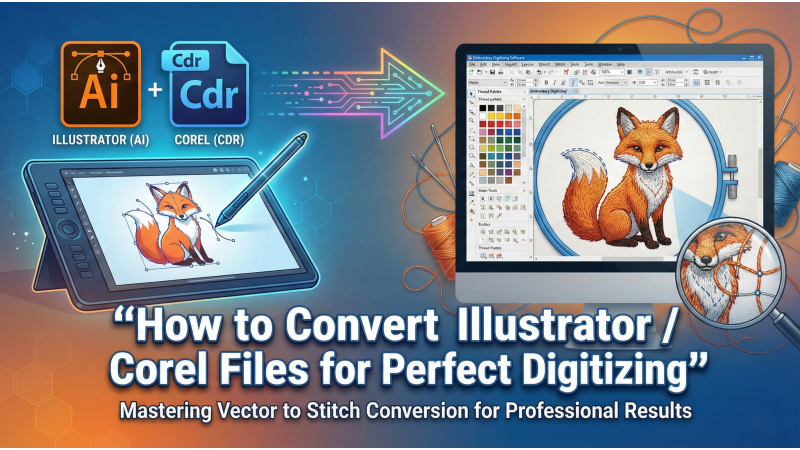
How to Convert Illustrator / Corel Files for Perfect Digitizing
Preparing artwork in Illustrator (AI) or CorelDRAW (CDR) before sending it for embroidery digitizing is one of the most crucial production steps. When a vector file is clean, simplified, and properly formatted, digitizing becomes smoother, resulting in cleaner stitches, correct density, smooth pathing, and flawless embroidery output. A poorly prepared file creates unnecessary trims, jagged satins, mismatched fills, excessive nodes, and distorted outlines. This extended guide explains how to prepare Illustrator and Corel artwork so it becomes perfectly digitizer-ready.
1. Clean All Vector Paths Before Exporting
Vector artwork often contains hundreds of unnecessary points, stray nodes, rough outlines, hidden layers, or overlapping shapes. Embroidery machines interpret the artwork exactly as it appears — sloppy vectors equal sloppy stitches.
In Illustrator, the Simplify Path feature helps reduce excessive nodes, while CorelDRAW offers similar tools to clean curves with shape refinement options. If you’re using Wilcom or Hatch with Corel integration, you can also review their official node optimization and image-handling recommendations here: Wilcom Bitmap Prep Techniques.
On the embroidery side, understanding how auto-digitizers interpret curves is essential. This short guide explains artwork-to-stitch conversion inside CorelDRAW with Hatch: Auto-Digitize with CorelDRAW .
Finally, always expand strokes (Object → Expand in Illustrator or Convert Outline to Object in Corel). Strokes left unconverted often cause gaps or unpredictable satin widths during digitizing.
2. Merge, Weld, and Simplify All Shapes
Embroidery machines work best with solid, closed shapes. Broken edges, overlapping fills, or fragmented elements force the digitizer to repair the file manually. Use Weld, Unite, Trim, and Combine tools to merge shapes into a clean structure.
For beginners who struggle with messy curves, these videos offer great clarity on fixing distorted or overly-complicated paths before exporting:
• Vector Cleanup for Better Digitizing
• How to Prepare Artwork for Embroidery
Avoid micro-details, tiny decorative elements, and ultra-thin outlines. Embroidery cannot reproduce miniature features accurately, so simplify them before export.
3. Use Proper Color Mapping and Clean Palettes
Many Illustrator/Corel files contain multiple duplicate shades that visually look the same. Embroidery software reads every unique color as a new thread, resulting in unnecessary color changes.
Consolidate similar shades and use only essential colors. Remove gradients, transparency, blur, and soft shading — embroidery cannot replicate these effects. Convert all blended or semi-transparent elements into solid vector shapes.
4. Convert All Text to Curves or Outlines
One of the most common digitizing problems occurs when fonts aren’t converted to curves. If the digitizer does not have the same font installed, the file will substitute automatically, destroying the logo.
Convert text before exporting:
• Illustrator: Type → Create Outlines
• CorelDRAW: Convert to Curves (Ctrl + Q)
For Corel users, this tutorial explains text-to-curve conversion visually: Convert Text to Curves in CorelDRAW.
Avoid overly-thin fonts, serif micro-details, or decorative scripts unless they are enlarged. Small text under 5 mm should be thickened or redesigned for embroidery stitching.

5. Export in Digitizer-Compatible Vector Formats
The most commonly accepted embroidery-friendly vector formats are:
• AI
• EPS
• SVG
• PDF (vector-based only)
Disable rasterization during export. Do not embed PNG/JPEG images, transparency, or gradient effects. Everything must be 100% vector.
To fully understand which formats preserve vector integrity best, review this guide: Best File Formats for Embroidery Digitizing.
6. Check File Size and Complexity Before Sending
Extremely detailed vectors with thousands of nodes slow down digitizing software and create heavy stitch density. Before exporting, zoom in and remove unnecessary patterns, repeated outlines, shadows, clipart layers, and excessive effects.
For automated shape-to-stitch conversion systems, complexity directly affects stitch sequencing. You can learn more about Corel-to-Embroidery conversion behavior here: Hatch Auto Conversion Guide .
Split extremely large designs into logical sections — text, icons, borders, or decorative elements — to give the digitizer clean, controllable areas.
Conclusion: Clean Vector Files Produce Flawless Digitizing
Proper vector preparation ensures that your embroidery digitizer works efficiently and your final stitching quality is perfect. Clean paths, closed shapes, simplified details, unified colors, outlined text, and correct export formats remove 90% of digitizing problems before they even occur.
With a strong vector foundation, embroidery machines produce:
• Smooth satin lines
• Balanced fills
• Sharp letters
• Clean edges
• Fewer trims
• Fast production runs
The more precise your vector file is, the more flawless your embroidery will be.
Leave a comment