





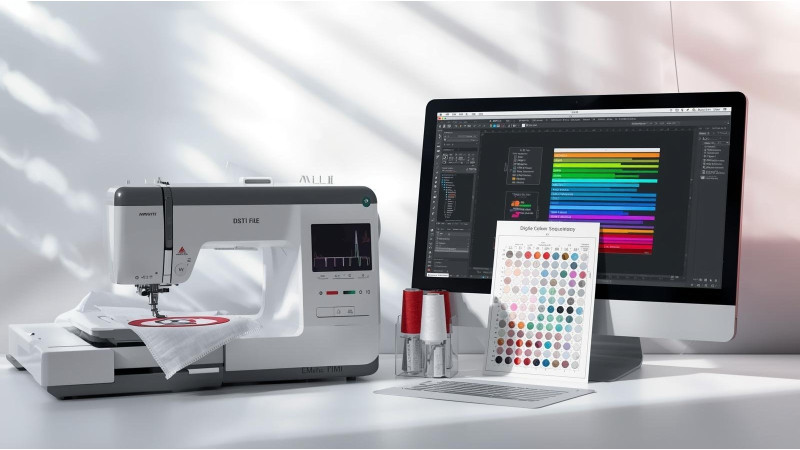
 Why Colors Sew in the Wrong Order — DST File Stitch Sequencing Fix
Many embroiderers face the frustrating issue of colors sewing in the wrong order, especially when working with DST files. This problem is not caused by the embroidery machine itself, but by the structure of the file, incorrect digitizing, or software interpretation. In this guide, we explain why this happens and how to fix DST color sequencing errors with proven methods.
For general embroidery design resources, you may also explore EmbDesignTube.
1. How DST Files Handle Color Information
The first thing to understand is that the DST format does not store real color data. It only stores stitch points and basic commands. Because of this, embroidery machines guess the thread colors based on their internal palette.
To learn more about DST behavior and structure, see this detailed explanation by HoopTalent: Mastering DST Embroidery Files.
2. Why Colors Sew in the Wrong Sequence
Incorrect sewing order usually happens because of:
- Layers digitized in the wrong order
- Missing or misplaced color change commands
- Objects grouped together incorrectly
- Software exporting sequences inaccurately
- Machine interpreting the file differently from the software
A helpful breakdown of color problems in embroidery digitizing is covered by Absolute Digitizing: Understanding Color Issues in Machine Embroidery Digitizing.
3. Digitizing Mistakes That Cause Wrong Color Order
Most color sequencing problems originate during digitizing. Common issues include:
- Digitizer creating objects out of logical order
- Objects layered incorrectly
- Underlay created after top stitching
- Saving without checking object order
- Accidental merging of color segments
A good explanation of unexpected color results in embroidery can be found here: Why Are the Colors Wrong in My Machine Embroidery Design?.
4. Automatic Software Conversion Errors
When converting from EMB, PES, or other formats into DST, automatic converters may rearrange the color sequence. Some free software tools simplify the file and remove color commands.
To understand differences between major embroidery file formats, see: Choose the Best Embroidery File Formats – DST, PES, EMB.
5. How to Fix DST Color Sequencing Problems
a. Reorder Objects in Your Digitizing Software
Open the original file (preferably in EMB or native format), check the object list, and reorder the elements according to proper sewing logic.
b. Add Missing Color Change Commands
Insert “stop” or “color change” commands between objects to force the machine to switch thread colors correctly.
c. Avoid Relying on Automatic Conversions
If your software allows, export using a “preserve sequence” or “keep original order” option.
d. Test the DST File on Multiple Viewers
Sometimes one viewer shows the wrong order while the machine sews correctly. Always validate in more than one environment.
6. Machine-Specific Interpretation Issues
Some machines adjust the thread palette automatically. Even when the stitch order is correct, the displayed color name may appear wrong.
You can view multiple real-world examples in these instructional YouTube videos:
- DST File Color Issue Example 1
- DST File Color Issue Example 2
- DST Sequencing and Editing Guide
- Fixing Wrong Color Order in DST Files
7. Final Steps to Ensure Correct Color Order
- Always keep a master copy in its original editable format
- Avoid editing DST files directly when possible
- Re-export the file after verifying object sequence
- Test stitch small samples before bulk production
When you understand how DST files work and how sewing order is defined during digitizing, you can prevent most color sequencing issues and achieve sharp, clean embroidery results every time.
Related Products
Leave a comment