





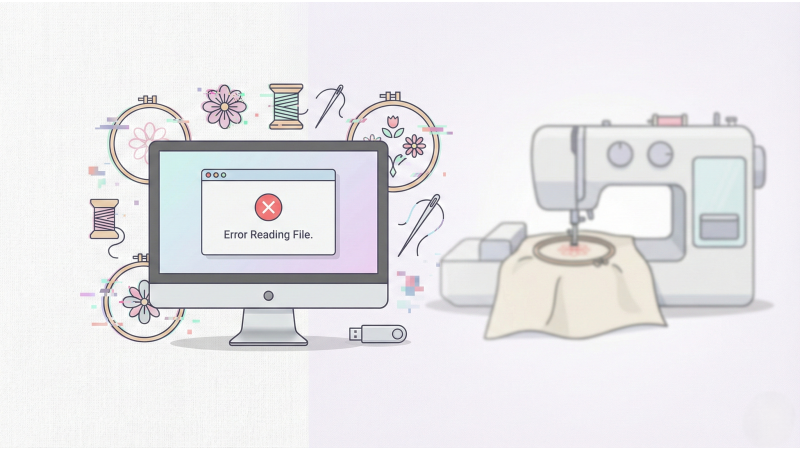
“Error Reading File” — How to Repair Broken Embroidery Files
The “Error Reading File” message appears when an embroidery design file is damaged, incomplete, or not formatted correctly for your machine. This issue is common with downloaded designs, designs converted incorrectly, or files edited in unsupported software.
This guide explains the most common causes, step-by-step repair methods, and trusted resources to help you recover broken or corrupted embroidery files.
Why Embroidery Files Become Corrupted
Embroidery files can break for a number of reasons. Some of the most common include:
- File was not fully downloaded or got interrupted during download
- Incorrect file conversion between formats
- Unsupported stitches or color layers in older machines
- Damaged USB drive or memory card
- Editing a file in third-party software that does not export properly
- Using outdated embroidery software
1. Re-download the Original File
Before trying advanced repair methods, download the design again from your original source. A corrupted or half-downloaded file is the most common cause of this error.
You can access high-quality, verified embroidery designs at:
EmbDesignTube
2. Use a File Repair Guide
Several detailed technical guides are available online that help diagnose and repair embroidery files. These guides explain how to check stitch counts, damaged headers, broken color blocks, and more.
Useful repair guides include:
Embroidery-Pro: Fixing a Corrupt Embroidery Design File
3. Check Community-Supported Fixes
File corruption issues often happen across many machines and formats. Community forums and support threads share real solutions from other users facing the same problem.
Examples include:
JustAnswer: Downloaded Embroidery Designs Not Opening
GitHub Ink/Stitch Issue: Broken Embroidery File Discussion
4. Open the File in Another Embroidery Software
Sometimes the file does not open in one software but loads in another program. When this happens, the second software can often export a clean and corrected version.
Try checking the file in:
- Wilcom
- Hatch
- Ink/Stitch
- Embrilliance
- MySewnet
5. Convert the File to Another Format
Converting the file using a reliable converter can fix broken headers or rewrite missing information. After conversion, convert back to the original format if needed.
Ink/Stitch, MySewnet, Embrilliance, and Wilcom often repair minor corruption automatically during export.
6. Remove Unsupported Elements
Some older embroidery machines cannot read certain features, such as:
- Jumps without trims
- Color layers not separated properly
- Embedded thread charts
- Satin density too high
Editing out these elements often restores file compatibility.
7. Learn from File Repair Videos
Video tutorials walk through the exact steps to fix corrupted embroidery files, including format conversions, error checks, and clean re-saving techniques.
Helpful YouTube tutorials include:
YouTube: How to Fix Corrupt Embroidery Files
YouTube: Repairing PES and DST Files
YouTube: Embroidery File Troubleshooting Guide
8. Ask for Professional Help
If the file is important and none of the above methods work, a professional digitizer can rebuild the design. They can recreate missing stitches, correct damaged layers, and clean up the file structure.
Many users get these problems solved quickly with expert help.
Final Thoughts
“Error Reading File” issues can be frustrating, but most embroidery files can be repaired with the right approach. Whether the file is partially corrupted, incorrectly downloaded, or poorly converted, the solutions listed above usually bring the design back to life.
Always keep a backup of your embroidery designs and download from trusted sources to avoid file corruption in the future.
Related Products
Leave a comment