





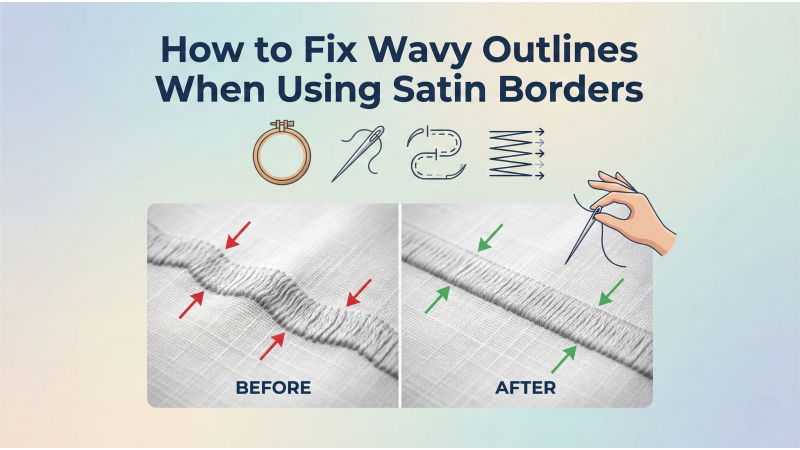
How to Fix Wavy Outlines When Using Satin Borders
Satin borders are popular for creating smooth, bold outlines on embroidery designs. But because satin stitches are dense, directional, and prone to pulling, even small problems in stabilization or digitizing can cause the border to become wavy, uneven, or misshaped. This guide explains the real reasons behind wavy satin outlines and how to achieve clean, stable borders every time.
For more embroidery resources, you can also explore: EmbDesignTube.
1. What Causes Wavy Satin Borders?
Wavy outlines appear when the fabric shifts, the stitches pull unevenly, or the density of the satin border creates distortion. Satin stitches are more sensitive to movement and tension than other stitch types, making stabilization and underlay essential.
A helpful technical overview on stitching satin successfully is available here: EmbroideryHooping – Satin Techniques.
2. Fabric Movement and Insufficient Stabilization
If the fabric moves even slightly during stitching, satin borders will appear wavy. Always use an appropriate stabilizer that matches the fabric weight and stretch level.
For deeper understanding of fabric behavior in embroidery, refer to: Textiles Committee Fabric Guide.
Key tips include:
- Use cutaway for stretchy fabrics.
- Add fusible backing for lightweight materials.
- Hoop the stabilizer tightly, not the fabric alone.
- Use temporary adhesive spray to prevent shifting.
3. Underlay Problems Causing Border Distortion
The underlay is the foundation of any satin border. Without proper underlay, satin stitches sit directly on fabric and distort easily.
A Reddit user suggests an effective tip: Add an edge run underlay to clean up satin borders.
Underlay types that help stabilize satin borders:
- Edge run: Creates a clean boundary and prevents waviness.
- Zigzag underlay: Adds bulk and supports the satin density.
- Double underlay: For very thick or wide borders.
Industry-standard digitizing guidance on underlay and stitch behavior can also be found here: Wilcom Stitch Mastery Blog.

4. Incorrect Satin Density
If the border is too dense, the fabric will compress and ripple, pulling the outline inward and creating wave-like distortion. If the density is too low, gaps appear and the edge looks uneven.
For proper density settings and stitch adjustments, see: SewingTrip – Stitch Settings.
General density rules:
- Wider satin columns require slightly lower density.
- High-lustre threads like rayon need less density than polyester.
- Reduce density when stitching on delicate or stretchy fabrics.
5. Satin Stitch Width Too Large
Satin stitches lose stability if they are stitched too wide. Once a satin column exceeds about 7–9 mm, the stitch begins to arc, curve, and wave.
In such cases, splitting the column or switching to a tatami fill provides more even, stable results.
More information on stitch type selection can be found in the Wilcom reference manual: Wilcom Embroidery Studio Reference Manual.
6. Direction of Satin Stitch Pull
Satin stitches naturally pull in the direction of the stitch travel. If both sides of the border are stitched in the same direction, the entire outline may lean or warp.
This is known as the push–pull effect. A dedicated technical explanation is available here: Maggie Frames – Satin Stitch Mastery.
To fix this:
- Change stitch direction on opposite sides of the border.
- Add a compensating underlay.
- Adjust pull compensation in your digitizing software.
7. Puckering Under the Satin Border
Puckering under the design is a major reason borders appear wavy after stitching. This may happen because of loose fabric, incorrect stabilizer, or poor hooping technique.
More on preventing puckering on satin can be found here: MaggieFrames – Puckering Prevention.
8. Incorrect Machine Speed and Tension
High stitching speed increases vibration and fabric movement, especially during satin stitches. Incorrect thread tension also causes the stitches to pull more tightly on one side, creating a wavy look.
General tension and stitch-setting advice is available here: SewingTrip – Stitch Settings.
9. Digitizing Errors Leading to Wavy Borders
Even with perfect stabilization and machine settings, digitizing mistakes can cause satin borders to appear uneven. Common errors include:
- Wrong underlay type or no underlay.
- Poor pull compensation settings.
- Inconsistent stitch direction.
- Excessive density for the fabric type.
- Stitching the border before the fill, causing distortion.
A professional digitizing explanation of push and pull distortion is available at: DigitizingFactory – Push and Pull Guide.
10. When to Redigitize the Border Entirely
If the outline is consistently wavy across multiple materials, the design itself may need redigitizing. A properly digitized satin border should stitch smoothly without excessive compression or distortion.
For custom digitizing help or professionally corrected designs, explore: EmbDesignTube.
Conclusion
Wavy satin borders are usually caused by fabric movement, insufficient underlay, improper density, or poor digitizing technique. By adjusting stabilizer choices, using the correct underlay, fine-tuning stitch settings, and understanding pull compensation, you can achieve a clean, stable satin outline every time. With the right combination of technique and digitizing precision, satin borders can become one of the most beautiful and reliable elements in your embroidery work.
Related Products
Leave a comment