





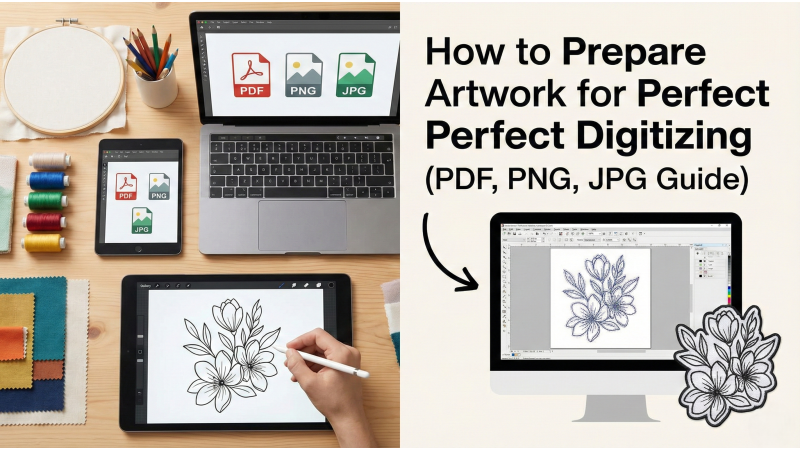
How to Prepare Artwork for Perfect Digitizing (PDF, PNG, JPG Guide)
Preparing artwork for digitizing is the quiet hero of flawless embroidery. When the artwork is sharp, clean, and properly formatted, digitizers can translate it into smooth stitch paths instead of battling blurry screenshots or distorted graphics. This guide expands on the essentials and shows you how to create submission-ready artwork for any embroidery project.
Before we dive in, understanding artwork preparation becomes even easier when you explore helpful resources such as file format requirements for digitizing, insights on preparing digitizing-ready artwork, and professional guidelines shared by digitizing experts like Quality Care Digitizing. You can also learn visually from tutorials such as this artwork-prep walkthrough and a more detailed breakdown in this digitizing preparation video.
1. Use High-Resolution Artwork Only
High resolution is the foundation of accurate digitizing. If details are fuzzy, pixelated, or distorted, the digitizer must guess what the artwork is supposed to look like — leading to misinterpreted shapes and weak stitch results.
- Minimum: 300 DPI
- At least 1000px width
- Avoid screenshots, WhatsApp-compressed images, and small icons scaled up
Digitizers can only stitch what they can clearly see. Sharp details mean cleaner stitch paths and fewer revisions.
2. Choose the Right File Type
Some formats naturally work better for digitizing. PNG, PDF, and high-quality JPG files allow clean tracing and accurate shape interpretation.
Recommended Formats
- PNG – crisp, clean edges with transparency support.
- PDF – often contains vector artwork, ideal for perfection.
- High-resolution JPG – works beautifully if the image is clean.
Avoid
- Compressed screenshots
- Photos of printed artwork
- Images with shadows, glare, or skewed angles
Choosing the right file type gives the digitizer a head start — no redrawing, no guesswork, just clean stitching.
3. Clean Up Backgrounds Before Sending
Background noise confuses stitch mapping. Textures, patterns, shadows, or gradients may be mistakenly interpreted as part of the artwork.
You can remove backgrounds using:
- remove.bg
- Photoshop
- Photopea
- Canva
A transparent or solid white background keeps the artwork clean and easy to digitize.

4. Keep Lines and Shapes Clear
The cleaner the artwork, the better the stitch quality. Faint, broken, or uneven lines force digitizers to guess — leading to distortion, gaps, or wobbling satin stitches.
Ensure your artwork has:
- Defined outlines
- No overlapping elements unless intended
- No pencil or sketch marks
- No shadows or photo artifacts
5. Avoid Extremely Thin or Thick Lines
Embroidery is a physical medium with thread limitations. Ultra-thin lines break during stitching, while thick lines create bulky, uneven areas.
Ideal line thickness for embroidery: 2–3 mm
If your design has micro-details, ask your digitizer whether simplification is needed for stability and readability.
6. Make Text Clear, Readable, and Digitizer-Friendly
Fonts often look perfect on screen but distort in thread. Thin scripts, decorative curls, and narrow serif fonts usually require adjustments.
Always provide:
- The font name
- Exact spelling
- Preferred embroidery size
This helps the digitizer choose the correct stitch style—satin, run, or fill—ensuring lettering is crisp and durable.
7. Provide Accurate Color References
Thread colors vary across brands. Giving the correct color references eliminates mismatched logos or off-shade embroidery.
Share thread codes for:
- Madeira
- Isacord
- Robinson Anton
- Gunold
RGB or HEX codes are also helpful for visual matching.
8. Preparing PDF Artwork
PDFs are often the best for digitizing because they typically contain vector graphics, which have mathematically perfect edges.
Before sending a PDF, ensure:
- No password protection
- All fonts are embedded
- No low-resolution images inside
- Artwork is vector-based whenever possible
Vector PDFs drastically reduce digitizing time and improve precision.
9. Preparing PNG Artwork
PNGs are excellent due to their transparency support and superior clarity.
Ensure your PNG has:
- A fully transparent background
- Sharp outlines without semi-transparent fuzz
- Clean edges with no leftover pixels
- At least 2000px width for larger embroidery designs
A well-prepared PNG makes the digitizer’s job significantly easier.
10. Preparing JPG Artwork
JPG images are common but compressed, creating noise and blur. Still, a well-prepared high-resolution JPG can produce excellent results.
Checklist for JPGs:
- No pixelation
- No gradients or shadows from photos
- No creases or distortions
- No color bleeding
If the JPG is clean, digitizers can translate it into accurate stitch work.
11. Final Artwork Submission Checklist
- ✔ 300 DPI or higher resolution
- ✔ Clean, sharp outlines
- ✔ Transparent or solid white background
- ✔ PNG, PDF, or high-quality JPG
- ✔ Exact size requirements included
- ✔ Correct thread color references
- ✔ Font names and spelling confirmed
Conclusion
Perfect embroidery begins long before the first stitch — it begins with well-prepared artwork. By ensuring your image is high resolution, clean, properly formatted, and supported with accurate details, you help your digitizer transform the design into a flawless embroidery file.
Good artwork preparation speeds up production, reduces revisions, and guarantees cleaner, more professional embroidery results every time.
Leave a comment