





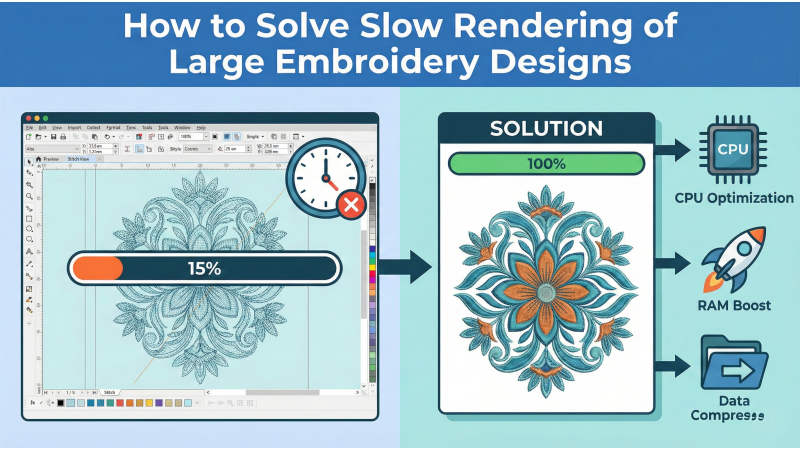
 How to Solve Slow Rendering of Large Embroidery Designs
Large embroidery designs can feel like they’re dragging their feet through wet paint — every move lagging, every zoom taking a second too long. When your files are packed with dense fills, tiny details, and tens of thousands of stitches, even powerful software begins to hesitate. Fortunately, most slow-rendering problems come from design complexity rather than hardware limitations, and you can speed things up with the right workflow adjustments.
Before diving into fixes, it helps to understand how different embroidery tools behave with heavy files. Industry articles such as this stitch-count optimization guide explain why dense patterns strain software rendering. Troubleshooting resources from trusted educators, like Echidna Sewing's quality troubleshooting insights, show how certain design structures affect performance. Even long-running software FAQs — for example, the technical notes on Embird’s official FAQ — highlight how file weight impacts rendering speed.
Real-world demonstrations also help visualize the issue. These video walkthroughs, such as this overview of handling large embroidery files and this breakdown of software lag causes, show how even small density changes create big rendering differences. And if you want to see how designers optimize complex path layouts, this advanced editing tutorial offers a practical, visual look at performance-friendly digitizing.
With those perspectives in mind, let’s walk through the strategies that transform a slow, sluggish file into something your software can handle gracefully.
1. Use Lightweight Vector Artwork
Digitizing starts before the first stitch — it starts with the artwork. Vectors overloaded with tiny nodes, stray points, or overly complex curves become a burden for stitch processors. Simplifying shapes reduces recalculation time dramatically. Clean artwork also produces better underlay and fills, so the benefit cascades through the entire file.
2. Reduce Excessive Stitch Density
Dense stitching is beautiful but computationally heavy. When every square millimeter contains layer upon layer of thread, your software must simulate thousands of overlapping stitches. Referencing stitch-reduction concepts such as those discussed in the industry stitch-count optimization guide helps you maintain visual fullness without overloading your system. Reducing density also improves stitch quality, reduces thread breaks, and lightens the file significantly.
3. Turn Off Realistic View During Editing
Realistic or 3D stitch views look lovely, but they devour processing power. Each simulated stitch has texture, shadow, and interaction with surrounding stitches. When editing large files, switch to a basic line view or simple stitch map. This makes real-time adjustments faster, especially when rotating, scaling, or reshaping complex sections.
4. Break the Design into Logical Sections
A large design is easier to manage when divided into smaller, digestible pieces. Breaking heavy fills into segments helps your software focus on smaller rendering tasks instead of recalculating an entire region with every edit. Layering and grouping also keep your workspace organized and easier to navigate.
5. Check System Performance Limits
Even though design optimization is usually the main cause of lag, your computer’s condition plays a role. Limited RAM, slow storage drives, or outdated graphics drivers contribute to sluggish previews. Clean up temporary files, close background applications, and keep your driver updates current. Tools like the performance advice in Echidna’s troubleshooting article can help you diagnose whether your system setup contributes to rendering delays.
6. Save in Efficient File Formats
Some working formats contain layers of historical edits, extra objects, or heavy preview data. Saving your design in a lighter format while keeping a master backup can improve load times significantly. Your software’s documentation, like the format guidance inside the Embird FAQ, provides insight into which formats are most efficient for complex designs.
Bonus Tip: Learn Through Real Demonstrations
Sometimes a visual walkthrough explains performance issues better than text alone. Watching large-design editing sessions — such as this demonstration, this rendering-optimization video, and this advanced editing tutorial — gives a clearer sense of how experts keep their work smooth and efficient. Observing their cursor movements, density adjustments, and file-simplifying decisions teaches more than theory alone.
Conclusion
Slow rendering isn’t a permanent problem — it’s a sign your design is asking for simplification or clearer structure. By reducing stitch density, optimizing vector art, disabling heavy visual modes, segmenting complex areas, maintaining your system, and saving in smart formats, you’ll notice immediate improvements in speed and responsiveness. Large designs will still be demanding, but they’ll no longer feel like they’re moving through molasses. With these habits, your software works with you, not against you, letting creativity flow without interruption.
Related Products


Leave a comment