





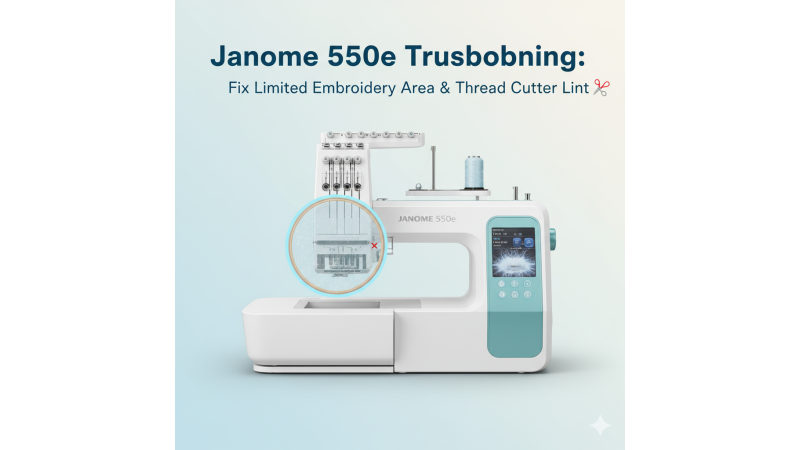
Janome 550e: Fix Limited Embroidery Area & Thread Cutter Lint Build-Up
The Janome 550e is one of the most advanced single-needle embroidery machines in its category, offering a large stitching field and high-precision results. However, users often face two common issues: feeling restricted by the embroidery area and dealing with lint accumulation in the thread cutter mechanism. This guide explains why these issues occur and how to fix them effectively. For additional technical understanding, you may also refer to the official Janome 550e Instruction Manual (PDF), which provides detailed machine specifications and maintenance instructions.
1. Limited Embroidery Area Issue
The Janome 550e supports designs up to 7.9" x 14", but sometimes users feel that the embroidery field seems smaller than expected. This usually happens due to hoop-selection mismatches, incorrect file formatting, or resizing errors in editing software. Many troubleshooting discussions, like those found on Usha Janome Memory Craft troubleshooting guides, show that hoop and design size conflicts are among the top machine frustrations.
Why the Area Feels Smaller
- The wrong hoop is selected in embroidery software.
- The design exceeds the usable hoop field after rotating or resizing.
- The .JEF design was exported with incorrect dimensions.
Fix
Select the correct hoop in your software before exporting the file. Always re-save your design in native .JEF format, as this ensures that Janome reads the correct dimensions. After changing hoop settings, restart the machine to refresh its internal memory and re-load the design. Running a test stitch helps confirm that the design fits perfectly within the hoop.
If you want to try extra-large compatible JEF files, explore collections designed for wide hoop formats at 360mm x 200mm hoop embroidery designs, which are optimized for larger Janome and Usha machine fields.

2. Thread Cutter Lint Build-Up
The automatic thread cutter is a convenient feature, but it can become less effective when lint accumulates under the needle plate or near the cutting blade. This is a very common issue reported by many users in embroidery forums, videos, and customer support threads. For example, this video explains bobbin and thread cleaning steps visually, which can help make the process easier to follow.
Common Causes of Lint Build-Up
- Using linty threads (e.g., cotton or cheap polyester).
- Long embroidery sessions without cleaning breaks.
- Dust falling into the cutter mechanism.
- Poor needle quality that produces excess thread debris.
Fix
- Turn off and unplug the machine before cleaning.
- Remove the needle plate and clean all lint using a soft brush or sewing-machine-safe mini vacuum.
- Avoid using compressed air, as it pushes lint deeper inside.
- Apply one small drop of oil to the recommended areas (refer to Janome’s servicing instructions).
- Reassemble the plate, power on the machine, and run a small test stitch to confirm smooth cutting.
If your cutter still misfires after cleaning, reviewing professional advice such as this expert discussion on Janome 550e thread and cutter troubleshooting can help identify deeper mechanical issues.
3. Improve Performance with Optimized Designs
Incorrectly digitized designs can cause the machine to stop, jam, or behave unexpectedly. Using clean, density-balanced designs made specifically for Janome improves both embroidery area accuracy and cutting performance. You can explore high-quality, machine-friendly JEF designs in categories such as:
These designs are created with stitch density, underlay, and pull compensation that suit Janome’s embroidery mechanics.
4. Quick Tip
After sizing a design or cleaning the cutter, always run a short sample stitch. This ensures that your hoop area, thread cutter, and design placement are all functioning correctly before starting a large project.
Related Resources
- Janome machine manuals and official guides
- Usha / Janome 550e embroidery designs
- High-quality JEF designs from EmbDesignTube.com
Related Products

Leave a comment