





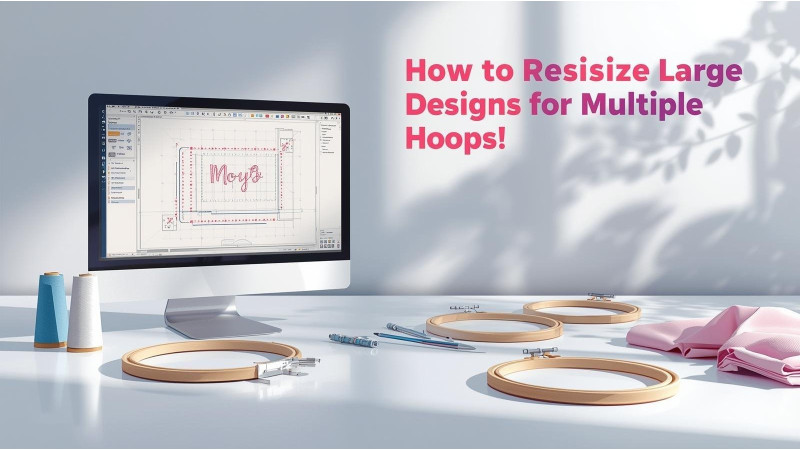
Artboard Too Small? How to Resize Large Designs for Multiple Hoops
When your embroidery design is larger than your machine’s hoop area, the artboard in your software may appear too small, preventing you from visualizing or placing the design correctly. Multi-hooping is the solution, and with proper resizing and splitting techniques, you can stitch designs of any size using smaller hoops. This guide explains how to adjust oversized designs, split them into sections, and achieve perfect alignment.
Why the Artboard Appears Too Small
Most embroidery software adjusts its workspace based on the selected hoop size. If the design exceeds that boundary, the program may cut it off, prevent movement of design elements, or block resizing. Learning the correct multi-hoop workflow, such as shown in this Hatch guide, helps you manage sections effectively.
Some programs also restrict maximum design dimensions. Multi-position hoops or software-assisted splitting remove this limitation, as described in this Embrilliance documentation.

How to Resize Large Designs for Multi-Hooping
1. Choose a Hoop Template Before Resizing
Always select the hoop model you want to use before making changes. This allows the software to adjust its workspace. If you're unfamiliar with hoop templates, the guide at this link explains the basics.
2. Resize Carefully to Avoid Distortion
Changing the design size incorrectly can cause density issues, thread breaks, or misaligned fills. Watch the resizing demonstration in this video to understand safe resizing limits. Another resizing method is shown in this tutorial.
3. Split the Design into Multiple Sections
Splitting the artwork into embroidery-friendly chunks is key to multi-hooping. The process is explained step-by-step in this Bernina multi-hooping guide.
4. Add Alignment Marks
Alignment marks help ensure that each hoop section connects perfectly. Most digitizing programs let you insert alignment lines or crosses automatically. Hatch’s multi-hooping tool, linked earlier, walks through adding alignment points for perfect results.
5. Use Multi-Position Hoops When Possible
Some machines support multi-position or split hoops that allow you to stitch large designs without manually dividing them. Detailed usage instructions are available in the documentation from Embrilliance linked above.
Tips for Perfect Multi-Hoop Stitching
- Stabilize heavily to prevent fabric shifting
- Always test stitch each section before final fabric
- Mark your fabric with chalk or water-soluble pens
- Double-check the orientation of each hoop movement
- Print templates to ensure correct placement
How to Fix Misalignment After Splitting
If sections do not line up, verify that the design was split correctly and that the alignment marks were placed in consistent positions. Multi-hooping workflows differ between software programs, so refer to the instructions for the specific tool you use. Watching multi-hooping videos such as the tutorials linked earlier provides a visual explanation.
Conclusion
Even when your embroidery artboard feels too small, multi-hooping allows you to stitch oversized designs with precision. By resizing correctly, splitting the artwork properly, and using alignment marks, you can stitch professional-quality large designs on any machine. Whether you are using Hatch, Embrilliance, Bernina, or another platform, the resources above offer complete walkthroughs for resizing and multi-hooping success.
Related Products


Leave a comment