





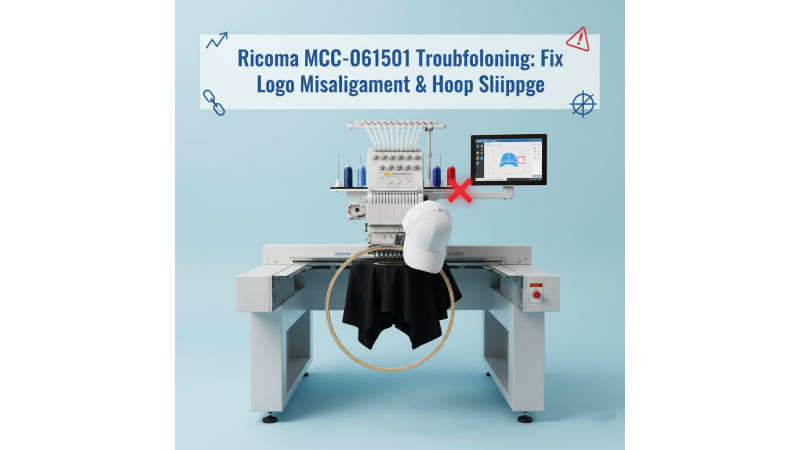
Ricoma MCC-061501 Troubleshooting: Fix Misalignment with Pre-Digitized Logos & Cap Hoop Slippage
The Ricoma MCC-061501 is known for its speed, precision, and durability, especially when working on custom caps and 3D puff embroidery. However, some users experience misalignment issues with pre-digitized logos or frequent hoop slippage during cap embroidery. In this guide, we’ll help you understand the causes and provide practical steps to fix these common problems.
Understanding the Misalignment Issue
When using pre-digitized logos, minor design displacement can occur if the machine’s calibration or hoop tension is off. The Ricoma MCC-061501’s cap driver system requires exact placement to keep the design centered throughout stitching. Even a small shift can cause the logo to appear skewed or rotated.
Always verify that the design origin and hoop position in your embroidery software match your machine’s frame settings. You can explore various Ricoma-compatible embroidery designs that are already tested for proper alignment.
Common Causes of Hoop Slippage on Caps
- Improper hoop tightening or loose frame screws
- Excessive cap curvature or uneven surface tension
- Overly high stitching speed for cap frames
- Worn out cap driver or misaligned frame adapter
- Lack of stabilizer or improper backing under the cap
To prevent hoop slippage, always use a firm stabilizer and ensure that the cap brim is securely clamped before starting. Adjusting the cap driver alignment as shown in this official Ricoma video tutorial can help reduce lateral movements.
Step-by-Step Troubleshooting Guide
- Recalibrate the Machine Head: Use the Ricoma MCC-061501’s built-in calibration feature to ensure accurate needle positioning.
- Check Hoop Tension: Tighten the cap hoop evenly and avoid over-stretching the fabric.
- Verify Design Alignment: Open your embroidery software and confirm that the design center point matches the physical frame center.
- Lower Stitching Speed: For curved caps, keep speed between 600–800 SPM to minimize vibration.
- Secure the Cap Frame: Make sure the frame locks correctly with the cap driver — avoid partial latching.
Following these steps will greatly improve consistency and help you achieve sharp, centered embroidery results even on challenging materials.
Recommended Embroidery Design Sizes
For the Ricoma MCC-061501, compatible design frames include:
- 500mm x 800mm frame
- 360mm x 520mm frame
- 360mm x 500mm frame
- 450mm x 500mm frame
Choosing the correct frame size not only prevents design misalignment but also helps the machine run smoothly. You can find high-quality compatible designs on EmbDesignTube.com.
When to Contact Ricoma Support
If your hoop or cap driver continues to slip after adjusting, it may indicate a mechanical calibration issue. In that case, visit the official Ricoma MCC-061501 product page for support or to schedule a maintenance check with an authorized distributor.


Leave a comment