





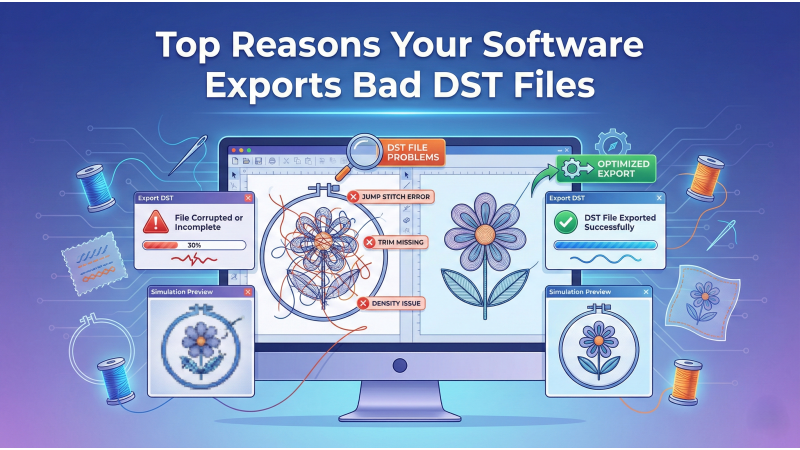
Top Reasons Your Software Exports Bad DST Files (Complete Guide + Expert Resources)
Exporting a clean, machine-ready DST file is one of the most critical steps in embroidery digitizing. A properly exported DST controls the stitch sequence, trims, jumps, color changes, and pathing logic that your embroidery machine follows. However, digitizers often face a common problem: the design looks perfect inside the software but behaves unpredictably when loaded into the machine. This mismatch usually comes from export settings, unsupported effects, incorrect pathing, or format limitations.
Before we dive deep, it is helpful to understand how different embroidery file formats behave and why DST—being an older format—often reacts differently compared to modern native formats.
1. Wrong Export Settings Selected
DST export settings vary across digitizing platforms. Even a small export mistake can break trims, remove jumps, or eliminate color-change commands. Many beginners assume the software will automatically export everything correctly, but DST is a very limited format and requires manual configuration.
Before exporting, double-check:
- Are trim commands enabled?
- Are jump stitches exported as jumps?
- Are color changes included?
- Is the end command added?
- Are connection stitches preserved?
- Are special effects flattened?
If your software supports viewing or adjusting export conversion quality, tools like Wilcom TrueSizer let you preview how the DST behaves before sending it to the machine.
2. Incorrect Stitch Path or Missing Connections
Pathing problems account for more DST corruption than any other cause. The DST format records only needle coordinates and movement commands, so every connection between objects must be clean and logical.
Common issues include:
- Long jumps caused by missing tie-offs
- Gaps between objects
- Auto-removed travel runs
- Broken segments that appear correct visually but fail during export
Always run a full stitch simulation before export. You can even compare simulations from two programs if you suspect a problem—YouTube digitizing walkthroughs like this DST troubleshooting demonstration show how small pathing errors lead to machine issues.
3. Layer Order Problems in the Design
Every embroidery machine follows the exact stitch order contained in the DST file. If sequencing is wrong, the machine will stitch in the wrong order—even if the shapes look correct inside the software.
Bad layer order causes:
- Underlay stitching after top stitching
- Borders appearing before the fill
- Small details sewing too early
- Unwanted overlaps
- Misaligned outlines
If you are using Wilcom and want better control over stitching order and export logic, always update to the latest build from Wilcom EmbroideryStudio downloads. Updated versions fix sequencing, mapping, and command-export bugs.
4. Most-Searched Resources for DST Troubleshooting
Digitizers often look for DST repair, preview, and fixing methods when designs don’t sew correctly. Some of the frequently explored resources include:
- Why color changes disappear after export
- Why trims don’t trigger correctly
- How to repair DST jump stitches
- How to reduce stitch count issues
- Why parts of the design shift inside the hoop
Many also reference diagnostic videos like this DST testing video which demonstrates what broken DST logic looks like on different machines.
5. Short Stitches or Overly Fine Elements
DST cannot handle extremely tiny stitches. When elements are too small, the export engine automatically rounds or removes them.
Recommended minimum stitch lengths:
- Satin: 0.8 mm
- Fill: 1.0 mm
- Travel stitches: 0.3–0.4 mm
If you see loose or uneven thread in machine results, check this guide on fixing loose thread and stitch instability because poor thread tension can amplify DST export issues.

6. Excessive Density Causing File Corruption
Density overload is a major reason DST files stitch incorrectly. Very dense areas may cause:
- Removed stitches during export
- Flattening of patterns
- Unwanted tie-offs inserted
- Needle breaks during sewing
Software updates often refine how density is calculated. If you use Wilcom, downloading the latest update from Wilcom’s official update page ensures smoother and more accurate DST calculations across fills, satins, and underlays.
7. Unsupported Elements or Effects
DST is a simple coordinate-based format and cannot interpret modern digitizing effects. Unsupported elements include:
- Gradient fills
- Carving effects
- Brand-specific stitch types
- Automatic texture stitching
- Advanced motif fills
Before exporting, convert everything into basic fills, satins, or manual stitches. Watching experienced digitizers simplify objects in tools like the ones shown in this practical DST export tutorial helps beginners understand which objects need converting before export.
Final Conclusion
Most DST problems originate from incorrect export settings, poor pathing, broken connections, wrong layer order, too-small stitches, unsupported effects, or density overload. The best way to prevent DST export issues is to follow a structured checklist:
- Simulate stitches before export
- Flatten unsupported effects
- Clean up the sequence order
- Verify trims, jumps, and color changes
- Respect minimum stitch length rules
- Review density after every adjustment
- Test the final file in a viewer like TrueSizer
When you follow these steps consistently, you will produce stable, dependable, and beautifully running DST files that work on any embroidery machine without surprises.
Leave a comment