





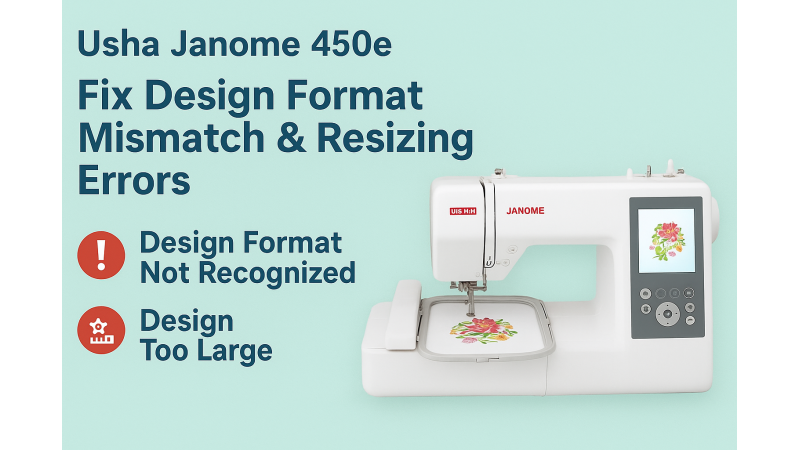
Usha Janome 450e Troubleshooting: Fix Design Format Mismatch & Resizing Errors Easily
Is your Usha Janome 450e showing a “design format not recognized” or “design too large” message when loading embroidery files? Don’t worry — these are very common issues for Janome embroidery users.
The good news? These problems are rarely caused by the machine. Most of the time, the issue is related to file format, hoop size, USB formatting, or incorrect design preparation.
If you're a beginner with Janome machines, you may also explore additional guides like the Top Tips for Using Janome 450e Effectively or this helpful YouTube tutorial: Janome 450e Setup & Troubleshooting Guide.
1. Understand JEF Format Limitations
The Usha Janome 450e only reads .JEF embroidery files. If your design is saved in PES, DST, EXP, VP3, or any other format, the machine will reject it.
Fix: Convert your design to JEF format using software tools like SewArt, Embroidery Editor, or Janome Artistic Digitizer before saving it onto your USB drive.
A quick visual walkthrough can be found here:
How to Convert & Import Designs for Janome Machines.
2. Check Design Size Compatibility
The Janome 450e supports a maximum embroidery area of 200mm x 280mm. Anything larger will cause “Design Too Large” or “Hoop Mismatch” errors.
Fix:
- Resize the design inside embroidery editing software.
- Always resize proportionally to avoid stitch distortion.
For hoop sizing mistakes, this tutorial may help:
Janome Hoop Setting & Size Adjustment Guide.
3. Format and Prepare Your USB Drive Correctly
A corrupted or incorrectly formatted USB can cause loading problems, even if your design is correct.
Fix:
- Use a 2GB–16GB USB 2.0 pen drive.
- Format it to FAT32.
- Store fewer than 50 designs in the root folder.
- Avoid filenames with symbols like %, &, #, @, etc.
You may also refer to this troubleshooting article for computerized sewing errors:
Common Computerized Machine Error Solutions.
4. Re-Save the Design Using Janome Software
Sometimes—even after conversion—the file may contain hidden data that the 450e cannot read.
Fix: Open your design in Janome software → choose “Save As → JEF” to generate a clean version optimized for the 450e.
5. Check Your Firmware (Optional but Helpful)
Older firmware versions may struggle with certain USB drives or new design formats.
Fix: Visit Janome’s official website for firmware updates or refer to video training such as:
Janome 450e Firmware & Setup Tips.
Quick Recap
- Always convert designs to .JEF.
- Keep design size within 200mm x 280mm.
- Format USB to FAT32 and avoid long filenames.
- Re-save using Janome software for clean compatibility.
- Preview the design on-screen before stitching.
Final Tip
If you still face issues, reviewing video tutorials can help you identify mistakes quickly:
Once you understand Janome’s format, hoop size, and USB requirements, your 450e will run smoothly with almost any custom embroidery file you create.
Related Products
Leave a comment