





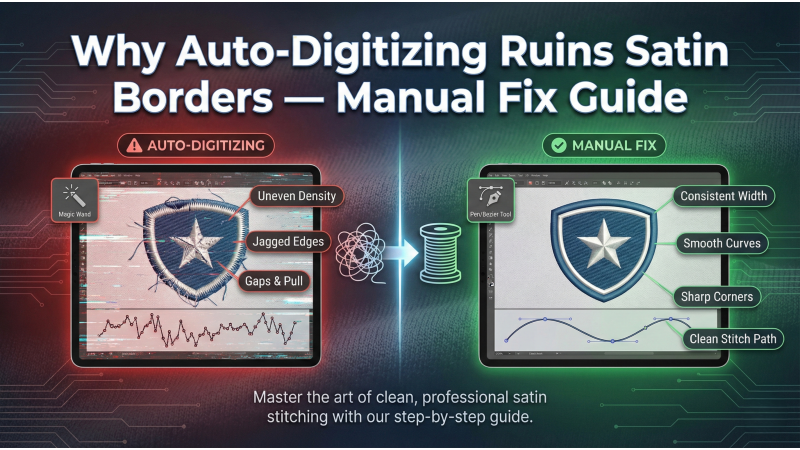
Why Auto-Digitizing Ruins Satin Borders — Manual Fix Guide
Satin borders are one of the most visually exposed elements of any embroidery design. Whether you’re creating monograms, badges, patches, or decorative outlines, the satin stitch must be clean, smooth, evenly spaced, and perfectly angled. Auto-digitizing tools often fail miserably at this because satin stitching requires intentional human judgment—not computer guesses. In this detailed guide, you’ll learn why auto-digitizing struggles with satin borders and how manual digitizing techniques guarantee professional-quality results.
Before we dive deeper, it’s helpful to understand how satin stitches are supposed to behave. A great place to explore these fundamentals is the official guide on applying satin stitch in professional software, which shows how critical proper pathing and the right stitch angles are. Once you understand the basics, it becomes clear why auto-digitizing simply isn’t enough for high-quality satin borders.
1. Auto-Digitizing Cannot Read True Shape Logic
When you manually digitize, you think like a stitch—not like a vector. You interpret shapes based on how they will sew, how fabric behaves, and how stitches need to flow. Auto-digitizing software doesn’t understand this logic. It only analyzes the artwork mathematically and creates borders based on surface detection rather than visual intent.
For deeper insights into shape interpretation, flow, and mapping stitches logically, check out this detailed explanation on satin stitch digitizing logic. You’ll see how human decision-making allows the stitches to follow curves naturally—something auto tools simply cannot replicate.
Auto-digitizing tends to break curved borders into awkward segments, creating sharp transitions, random stitch angles, and inconsistent sequencing. This results in uneven stitching, excessive trims, and borders that look amateurish.
2. Uneven Satin Width Causes Pull, Gaps & Distortion
Satin borders depend on consistent column width. Auto-digitizing tools interpret outlines mathematically, often generating variable widths that cause:
- Puckering in narrow regions
- Thread breaks in wider regions
- Visible gaps in curves and corners
- Fabric distortion and shifting
Manual digitizing allows you to set uniform satin widths or taper them intentionally where required. A helpful resource for learning how to judge width correctly is this guide on manual digitizing with Hatch Embroidery, which explains the control that manual input points provide.
3. Wrong Stitch Angle Selection
Stitch angle is everything in satin borders. It determines shine, smoothness, and stitch flow. Auto-digitizing tries to guess angles based on shapes—but because it doesn’t understand movement, most angles become unnatural.
Incorrect angles create:
- Jagged transitions
- Zigzag distortion
- Poor light reflection
- Twisted stitches
If you want to master angle placement and see visual examples of proper angle transitions, watch this helpful demonstration on manual satin angle correction.
4. Over-Dense or Under-Dense Stitching
Auto-digitizing applies generic density settings that do not match the fabric type, thread type, or project purpose. This usually results in:
Over-Density Issues
- Thread breaks
- Fabric wrinkles
- Stiff embroidery
- Machine jams
Under-Density Issues
- Visible fabric underneath
- Weak borders
- Patchy satin coverage
To understand how density affects quality and how to set it properly, check out this video breakdown on satin stitch density mistakes.
5. No Proper Underlay for Stabilization
Underlay is the foundation of every satin border. Auto-digitizing tools commonly apply incorrect underlay or skip it entirely. Without correct underlay, satin stitches collapse, shift, or lose edge definition.
Manual digitizers rely on specific techniques such as:
- Edge-walk underlay
- Zigzag underlay
- Double underlay (for thick borders)
For a deeper understanding of how underlay affects embroidery stability, this article on improving embroidery quality with underlay stitches is incredibly useful.
6. Manual Fix: Draw the Satin Path Yourself
The best fix for poor borders is to create the satin column manually using input points or a two-line satin tool. This gives you complete control over width, path, and flow. You can avoid distortion, maintain stitch consistency, and eliminate unnecessary splits.
To watch a hands-on walkthrough of manually creating satin borders, here’s a fantastic video tutorial on digitizing satin columns step-by-step.

7. Manual Fix: Adjust Stitch Angles Properly
Once the path is created, stitch angles must be placed manually. Angles should follow curves naturally and transition smoothly between sections. Proper angle work enhances shine, readability, and stitch performance.
If you want to understand how angles are strategically placed during manual digitizing, the techniques demonstrated in the guide on satin stitch digitizing offer valuable direction.
8. Manual Fix: Apply Correct Density & Underlay
After defining path and angle, finalize the satin border by setting density and underlay correctly based on:
- Fabric type
- Thread material
- Satin width
- Usage (patch, logo, garment, cap)
If you’re new to manual digitizing and want a structured workflow, the step-by-step methods shown in the training at Hatch manual digitizing are very helpful.
Conclusion
Auto-digitizing may save time, but it will never produce perfect satin borders. Satin stitching demands precision, intentional angle placement, controlled column width, proper underlay, and density tailored to fabric and thread. These are creative decisions—not mathematical guesses.
Manual digitizing ensures:
- Cleaner outlines
- Perfect stitch flow
- Better fabric stability
- Fewer thread breaks
- A truly professional embroidery finish
If you want to develop these skills and understand real embroidery logic, the techniques shown in the comprehensive lesson at Hatch Embroidery’s manual digitizing guide and Wilcom’s satin stitch documentation offer excellent learning support.


Leave a comment