





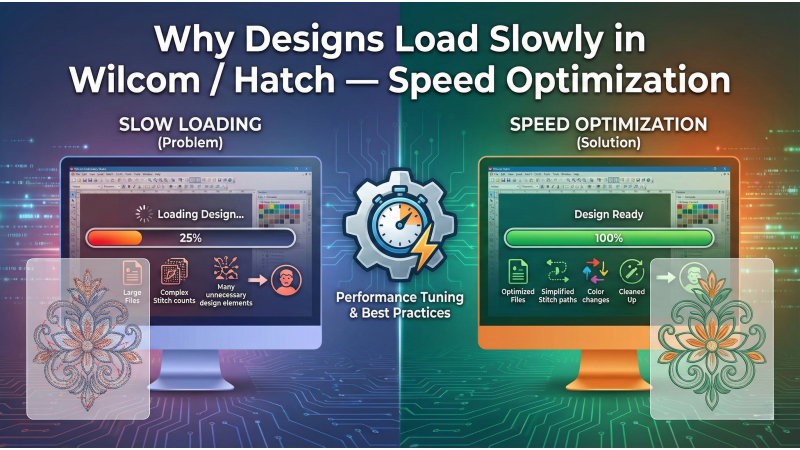
Why Designs Load Slowly in Wilcom / Hatch — Complete Speed Optimization Guide
Wilcom and Hatch are industry-leading embroidery software programs known for their power, precision, and professional-level digitizing tools. They allow digitizers to create advanced stitch types, complex layered fills, adjustable underlay structures, and production-ready embroidery artwork. But when working with large or unoptimized files, many users face slow loading, lagging zoom, delayed movement, or even freezing during editing. These issues slow down workflow—especially when managing multiple client projects back-to-back.
Before diving into optimization steps, it’s important to recognize how clean artwork preparation plays a major role in file speed. If your artwork is heavy or unoptimized, tools like professional artwork preparation methods can significantly improve speed. Additionally, understanding stitch behavior—such as eliminating unnecessary small stitches—helps reduce file weight and improves performance.
If you’re running the software on outdated hardware, reviewing the Wilcom EmbroideryStudio system requirements ensures your machine meets modern performance standards.
You can also observe real-world design optimization examples in videos like digitizing workflow walkthroughs, stitch management tutorials, performance troubleshooting demos, and Wilcom speed improvement techniques.
This detailed guide breaks down the main causes of slow loading and explains how to fix them effectively.
1. Large Stitch Count Designs Take Longer to Load
Designs with 100,000+ stitches naturally load slower because the software must calculate every stitch angle, overlap, travel path, pull compensation, and underlay. The more stitches, the more processing time required.
Optimization Tip: Reduce unnecessary details, avoid micro-text, and simplify fills to cut down stitch count. This immediately improves loading speed.
2. Heavy Artwork or High-Resolution Images Embedded in the File
Designs created from large PNGs, JPEGs, or layered Photoshop files load slowly because the system must render both embroidery objects and artwork simultaneously.
Optimization Tip: Compress images, remove unused layers, or convert artwork into optimized vector shapes before importing.
3. Too Many Nodes in Vector Artwork
Auto-traced artwork often includes thousands of tiny nodes. These overload Wilcom and Hatch during import and editing, causing slow response.
Optimization Tip: Manually simplify paths using Illustrator or CorelDRAW. Fewer nodes mean faster loading and smoother editing.
4. Auto-Digitized Designs Are Heavier
Auto-digitizing creates multiple fragmented shapes, random stitch segments, excessive overlaps, and micro-fills that dramatically increase file weight.
Optimization Tip: Re-digitize major areas manually to combine objects and remove clutter.
5. Insufficient Computer Hardware
Slow RAM, old processors, and HDD storage reduce software responsiveness. Wilcom benefits greatly from upgraded hardware.
Optimization Tip: Use SSDs, upgrade RAM to 16–32GB, keep storage clean, and choose a modern CPU.
6. 3D Simulation Mode Consumes More Power
Opening a design directly in 3D mode forces the system to load every stitch with texture, lighting, and depth. This significantly slows loading for large designs.
Optimization Tip: Switch to normal stitch view or outline mode before opening heavy files.
7. Background Programs Reduce Available Memory
Applications such as Photoshop, CorelDRAW, Chrome, video editors, or antivirus scans consume RAM and CPU, slowing down Wilcom and Hatch.
Optimization Tip: Close unnecessary software before digitizing—this frees up system resources.
8. Wrong File Format Conversions
Repeated conversions between formats cause data bloat and slower loading. DST, PES, JEF, and other formats may lose information during conversion.
Optimization Tip: Always work in EMB or EMF format until the design is finalized.
9. Corrupted or Overloaded EMB Files
Corrupted files often contain invisible shapes, unwanted trims, unused layers, or outdated metadata. These slow down loading and sometimes cause crashes.
Optimization Tips:
- Remove unused colors
- Delete invisible objects
- Copy clean objects into a new EMB file
- Use Wilcom’s cleanup features to remove unnecessary data
10. Excessive Layers and Poor File Organization
Too many stacked layers—even if hidden—must still be loaded, slowing opening times dramatically.
Optimization Tip: Merge similar objects, remove duplicates, and keep your design well-structured.

11. Overuse of Special Stitch Effects
Effects like motif fills, wave fills, ripple effects, and random fills require more processing power.
Optimization Tip: Use effects strategically and convert overly complex effects into simpler stitches.
12. Large Artwork Dimensions
Huge artwork (e.g., 10,000 px wide) forces Wilcom to scale the design internally, slowing down import and loading.
Optimization Tip: Resize artwork before importing to keep the file lightweight.
13. Too Many Color Changes
Each color change is stored as a command, so excessive stops increase file size and loading time.
Optimization Tip: Combine similar colors and avoid unnecessary stops.
14. Old File Formats or Legacy Settings
Files created in older versions may contain outdated structures that load slower in new versions.
Optimization Tip: Resave the file using the latest software version to refresh internal data.
15. Auto Underlay Overload
Auto-underlay can generate multiple layers automatically, making the file heavier.
Optimization Tip: Use manual underlay when possible or limit auto-underlay to essential shapes.
Conclusion
Slow loading in Wilcom and Hatch usually comes from heavy files, unoptimized artwork, excessive nodes, outdated hardware, corrupted EMB structures, or resource-heavy effects. By cleaning artwork, simplifying stitch objects, using proper system hardware, and organizing design layers efficiently, you can reduce loading time by over 50%.
A clean file opens faster, edits smoothly, and exports reliably—making your digitizing workflow more productive and professional.
-350x350w.jpg "50 Applique Embroidery Designs | February 2021 Bulk Download")
-350x350w.jpg "50 Applique Embroidery Designs | February 2021 Bulk Download")
Leave a comment