





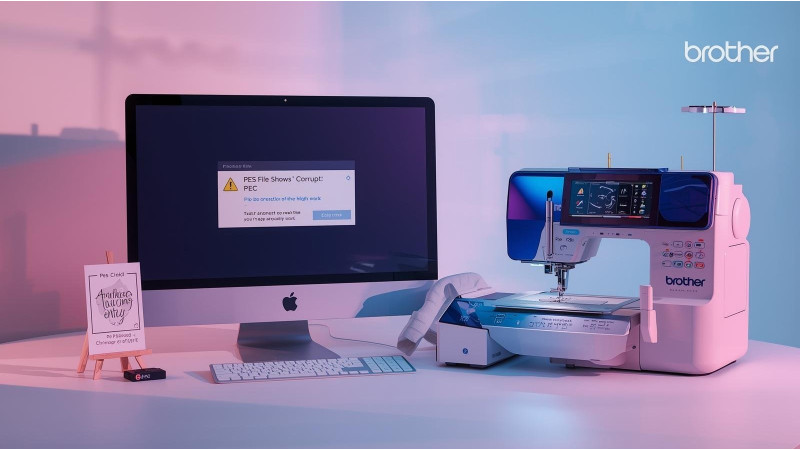
Why Your PES File Shows “Corrupt” — Real Fixes That Actually Work
A PES error can feel like the embroidery world has tossed a tiny wrench into your workflow gears. One moment your Brother machine is happily stitching its way through a project, and the next—bam—a stern “Corrupt File” message appears. Fortunately, most PES issues are repairable once you understand the mechanics behind the format. Several creators and educators, including those in tutorials like this practical PES troubleshooting walkthrough, show just how often these problems stem from small, preventable glitches rather than catastrophic damage.
PES files are sensitive to structure, naming, and version compatibility. That's why professional digitizing platforms such as Wilcom Workspace and open-source environments like Ink/Stitch emphasize proper exporting, consistent file handling, and correct format settings. This guide brings all of that together so you can confidently diagnose and repair corrupt PES files—whether you're working on monograms, logos, or full embroidery compositions.
1. Why PES Files Become Corrupt
A PES file may appear corrupt due to formatting issues, bad downloads, wrong versioning, or editing errors. Sometimes the design worked yesterday but refuses to open today—usually because part of the PES header or stitch block became unreadable. Creators exploring format breakdowns in tutorials like this PES structure explanation often illustrate how even a tiny structural inconsistency can trip an entire machine.
There are also in-depth repair discussions shared within the embroidery community, such as the insights provided in this guide on fixing corrupted embroidery files, which explains why PES corruption happens at a file-data level.
Major PES File Issues
- Broken or incomplete stitch blocks
- Incorrect PES version for your machine model
- Header damage during editing or conversion
- Software exporting errors
- File transfer issues (USB damage, improper ejection, etc.)
2. Incomplete or Damaged Downloads
One of the most common culprits is an incomplete download. If your connection dipped for even a second, the file may be missing vital bytes—and your machine will flag it as corrupt. This is exactly why community troubleshooting discussions often mention re-downloading as the first and easiest fix. For example, creators in videos like this problem-solving tutorial highlight how partial files behave unpredictably across different machines.
If your PES design came from an email attachment, cloud storage, or transfer platform, redownload it directly and verify the size matches the original source.
3. Using the Wrong PES Version
PES has multiple generations, and newer versions don’t always speak the same language as older Brother machines. A file created for a high-end model may appear corrupt on a more basic model. Digitizers often solve this by re-saving or converting the design.
If you’re unsure which PES version your machine accepts, re-export the file using software like Wilcom Workspace or Ink/Stitch. Tutorials such as this explanation of version issues reinforce how important proper export format is for avoiding corruption.
You’ll also find detailed breakdowns and repair guidance in resources like this corruption repair guide, which covers common version mismatch symptoms.
4. Editing PES Files Using Incompatible Software
Not every design editor understands the PES format. Some software exports incomplete blocks or ignores color/stitch group structures entirely, which leads to unreadable files. Free tools, trial programs, or outdated editors can easily output PES incorrectly.
If you frequently edit PES files, using structured tools like Ink/Stitch or browser-based systems from platforms such as Wilcom helps maintain clean PES exports. You can also find real-world troubleshooting cases documented in machine-specific support guides like this Brother troubleshooting resource.
5. How to Repair a Corrupt PES File
Not all corrupt PES files are lost. Depending on how the damage happened, one of the methods below typically restores the file.
Method 1: Re-download the Original File
Most corruption comes from incomplete transfers. Always try downloading the file again before attempting anything complex.
Method 2: Re-save Using Digitizing Software
Open the file in Ink/Stitch, Wilcom Workspace, or similar tools and export it as PES again. This rebuilds the underlying structure.
Method 3: Convert PES → PES Using Converters
Format converters re-encode the file header and often repair internal errors automatically.
Method 4: Remove Special Characters from the Filename
Brother machines reject filenames containing special characters, accents, and emojis. Rename the file using only A–Z, numbers, and underscores.
Method 5: Check the USB Drive
A malfunctioning USB drive can corrupt files during transfer. Reformat the drive to FAT32 and avoid older USB sticks that cause intermittent errors.
Method 6: Use Trusted, Pre-Tested Designs
Reliable design providers ensure files load properly across machine models, minimizing the risk of corruption altogether.
6. Preventing PES Corruption in the Future
- Avoid editing PES in unsupported software.
- Always save a backup copy before editing.
- Use tested, stable USB drives.
- Follow your machine’s recommended export settings.
- Use trusted design sources and verified PES versions.
Troubleshooting guides like those from Brother communities (as referenced earlier) reinforce that disciplined workflow habits dramatically reduce corruption rates.
Conclusion
A “Corrupt PES File” message may feel intimidating, but most cases are straightforward to resolve—whether the design needs re-saving, re-downloading, reformatting, or version conversion. By using reliable software, stable transfer methods, and clean PES export workflows, you’ll keep your embroidery machine running smoothly and your production process frustration-free. With the right habits, corrupted files become rare, manageable, and far less mysterious.
Related Products
Leave a comment