





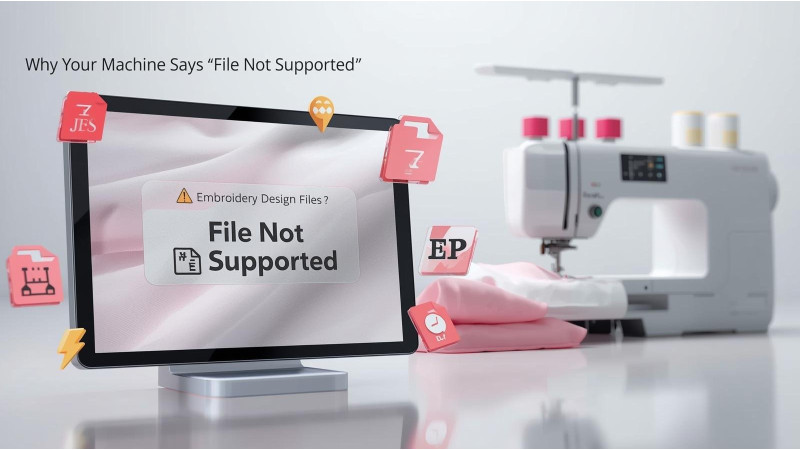
Why Your Machine Says “File Not Supported” and How to Fix It
If your embroidery machine displays the message File Not Supported, File Cannot Be Read, or Design Not Recognized, it usually means the file format, size, or structure is incompatible with your machine. This guide explains the most common reasons your machine refuses a file and how to fix them step by step.
1. The File Format Is Wrong for Your Machine
Every machine uses its own embroidery file format. If the design is not in the correct format, the machine will not read it. For example, Brother uses PES, Baby Lock uses PES, Janome uses JEF and JPX, Viking uses VP3 and HUS, while commercial machines often use DST.
- Royal Present: Why Your Machine Won’t Read a Design
- Major PES File Issues and Their Solutions
- Makema: Why a Design Does Not Appear on Your Machine
2. Your Hoop Size Is Too Small
Even if the format is correct, the design will not show up if it is larger than the maximum hoop size your machine supports. Machines automatically hide oversized files instead of giving a specific error.
3. The File Is Corrupted or Incomplete
Sometimes internet download interruptions, extraction errors, or editing software glitches damage a file. A corrupted PES, JEF, VP3, or DST file cannot load on your machine.
4. Your USB Drive or Folder Structure Is Incorrect
Some machines require designs to be placed in specific folders or root directories. Using unsupported USB formats, large storage drives, or wrong folder locations can trigger the File Not Supported error.

5. You Opened the File in Editing Software That Changed It
When PES or VP3 files are opened in some software, they may be auto-converted, resized, or altered without you noticing. This can make the file unreadable for your machine.
If you edited the file before transferring, re-export it in the correct format.
6. Your Machine Firmware Is Outdated
Older machines may not support the latest versions of PES, VP3, EXP, or JEF formats. A firmware update can solve this problem.
Check your manufacturer’s website for updates.
7. Your File Was Not Unzipped Before Transferring
Machines cannot read ZIP or compressed folders. You must extract the design before copying it to USB.
Watch this tutorial on proper downloading and transferring:
8. Your Machine Cannot Display Certain File Names
Some embroidery machines have strict naming rules. Special characters, long file names, or non-English symbols can prevent the machine from showing the file.
Keep file names simple, short and use only letters, numbers, and underscores.
9. The File Uses Unsupported Color Charts or Stitch Commands
Complex commands such as trims, stop codes, and special stitch types may cause certain machines to reject the file. Converting the file using a reliable converter tool fixes this.
10. The File Was Created for a Different Machine Brand
Even if two brands use the same format, their structure may differ. For example, a PES file exported for a commercial Brother model may not work on a home Brother model.
How to Fix File Not Supported Errors
- Verify the correct format (PES, JEF, VP3, DST, EXP, HUS).
- Check that the design fits your hoop size.
- Extract ZIP files before transferring.
- Use a smaller USB drive (2GB to 16GB recommended).
- Place files in the correct directory.
- Convert the file to your machine’s required format.
- Shorten the file name.
- Update machine firmware.
- Re-download the design in case of corruption.
Conclusion
The File Not Supported message is usually caused by format mismatches, hoop size issues, corrupted downloads, or unsupported file structures. By checking the format, verifying hoop limits, updating your machine, and transferring files correctly, you can prevent these problems and ensure smooth stitching every time.
Related Products

Leave a comment