





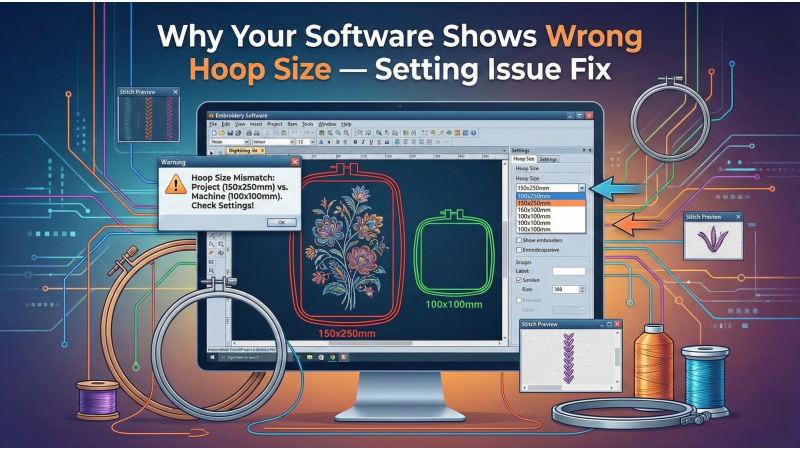
Why Your Software Shows Wrong Hoop Size — Setting Issue Fix
When your embroidery software displays the wrong hoop size, your entire workflow can fall apart. Designs may appear cropped, misaligned, oversized, or too small for the actual stitching area on your machine. This mismatch causes wasted material, inaccurate previews, and frustrating production delays. The problem is extremely common across hobbyists and professionals, especially after software updates, switching machines, adding new hoops, or modifying settings.
In this expanded guide, you’ll learn every reason your embroidery software might be showing the wrong hoop size and how to correct it. These methods apply to Wilcom, Hatch, Brother PE-Design, Bernina DesignerPlus, Embrilliance, Ricoma Chroma, Janome Digitizer, and more.
1. Machine Model Not Selected Properly
Each embroidery machine brand — Brother, Bernina, Janome, Ricoma, Barudan, Tajima, Singer and others — has unique hoop dimensions and stitch fields. When the wrong model is selected inside the software, hoop options will not match your machine. For example, selecting a 4×4 hoop machine while stitching on a 5×12 machine will immediately create sizing issues.
How to Fix:
- Open your software’s settings or preferences.
- Select “Machine Type,” “Machine Model,” or similar.
- Choose the exact machine you are using.
- Restart the software to apply correct hoop dimensions.
If you want to check official hoop specifications for popular machines, you can refer to resources like the BERNINA 590 machine page.
2. Default Hoop Setting Changed or Reset
Software updates, corrupted preference files, or new installations often reset the default hoop. This results in the program reverting to a generic hoop instead of your usual one. If your design preview looks cropped or off-center, this is likely the cause.
How to Fix:
- Open the Hoop Manager or Hoop Selection window.
- Select your correct hoop size.
- Click “Set as Default” or “Save as Preferred Hoop.”
3. Incorrect Measurement Units (mm vs inches)
If your machine uses millimeters but your software displays hoop sizes in inches, the numbers may seem wrong even though the hoop is correct. Many beginners mistake the unit difference for a hoop mismatch.
How to Fix:
- Go to measurement settings.
- Switch between mm and inches to match the machine.
- Ensure preview and grid units also match.
4. Helpful Guides for Understanding Hoops
To study hoop sizes, stitch fields, and machine compatibility in-depth, several trusted sources offer diagrams and detailed breakdowns. Excellent examples include the Echidna hoop size reference guide, which provides exact hoop dimensions, frame limitations, and brand differences.
For software-specific instructions, Brother users can explore the official PE-Design documentation, which outlines how to configure hoop settings inside the program.
If you want to compare different design libraries or machine-compatible files while cross-checking hoop needs, the collection at Embroidery.com is often used by embroiderers when testing hoop fit for complex designs.

5. Hoop Not Installed or Missing in the Software Library
Many machines do not auto-detect extended, magnetic, or aftermarket hoops. If the hoop is not added inside the software library, it will default to a smaller or incompatible size.
How to Fix:
- Open the Hoop Manager.
- Search for the correct hoop model.
- If missing, add it manually from the software’s hoop library.
- Some manufacturers provide downloadable hoop files.
6. Incorrect Hoop Orientation
Your hoop may appear rotated or flipped inside the software, giving the illusion that the hoop size is wrong. This often happens while repositioning templates.
How to Fix:
- Reset hoop rotation to 0°.
- Ensure the hoop is not horizontally or vertically flipped.
7. Software Cache or Configuration Error
Corrupted cache files frequently cause hoop display issues, missing hoop names, and incorrect stitch-area detection. This can occur after crashes or forced shutdowns.
How to Fix:
- Clear software cache (if supported).
- Reset layout or workspace.
- Restart the software.
- Reinstall only if necessary.
8. Design Larger Than the Selected Hoop
If a design exceeds the available stitch field, the software may appear to resize, zoom, or distort the hoop preview. Many programs auto-adjust hoop view as a warning indicator.
How to Fix:
- Check design dimensions.
- Resize to fit the hoop.
- Or switch to a larger hoop.
9. Imported Files Forcing Automatic Hoop Change
Some embroidery formats contain embedded hoop metadata. When imported, the software automatically switches hoops, making you think your settings are wrong.
How to Fix:
- Check embedded hoop information.
- Manually reselect your preferred hoop.
- Save the design to remove metadata overrides.
10. Outdated Software Lacking New Hoop Sizes
Older software versions may not support newer hoops introduced by brands like Bernina, Brother, and Janome. This results in inaccurate previews and missing sizes.
How to Fix:
- Update your embroidery software.
- Install any available hoop expansion packs.
Additional Real-World Learning Resources
Many embroiderers also learn through community experience. For example, users often discuss hoop size issues, machine compatibility, and software glitches inside groups like this embroidery community on Facebook, where real users share fixes and examples.
For practical hooping demonstrations and visual troubleshooting, helpful videos include tutorials such as this hoop placement guide on YouTube and this video explaining hoop alignment & orientation.
Lastly, for digitizing quality and hoop fit testing, many embroiderers explore platforms such as EmbDesignTube digitizing services, which let users compare stitch results across multiple hoop sizes.
Conclusion
Wrong hoop size display in embroidery software can be frustrating, but it is almost always fixable. Whether the issue stems from incorrect machine selection, orientation errors, outdated software, missing hoops, or corrupted configuration files, each solution is straightforward once identified.
With proper settings, correct hoop libraries, and a consistent workflow, you can eliminate hoop-related errors and enjoy accurate previews, cleaner results, and a smoother embroidery process — whether you're stitching a single custom piece or managing bulk orders.
Leave a comment